IBackup - online backup and online 

storage Support

Restore Microsoft SQL Server


Listed below are the steps to Restore the MS SQL Server database backup file (*.dmp) from your IBackup account directly to the MS SQL Server:


Method1:

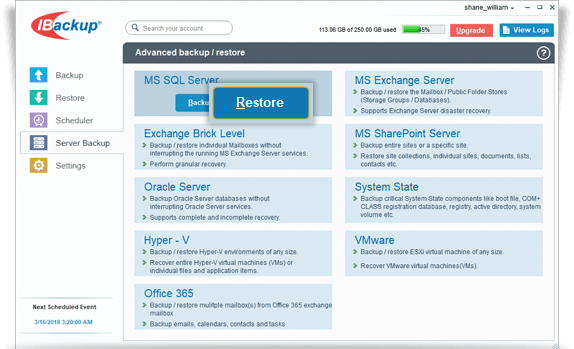
Step 1: Choose the SQL Server Restore option in any of the following ways:

  • On the application menu, go to
    Backup-Restore > SQL Server > SQL Server Restore.
  • Alternately, on the application tool bar, go to
    Wizards > Advanced Backup > SQL Server > SQL Server Restore.


Download
Advanced Backup Plug-in*
Related Link
Backup MS SQL Server
Interactive demo
User manual (PDF)
Data sheet (PDF)
Business Solutions

Step 2: Select 'Restore the SQL Server database backup file (*.dmp) from your IBackup account to your MS SQL Server' from the 'SQL Server Restore Wizard' screen.


Step 3: Provide the relevant authentication information when prompted.


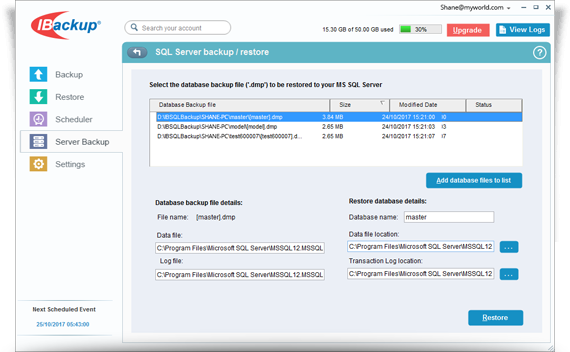
Step 4: Select the database backup file (*.dmp) from the IBackup account.

Step 5: Choose a folder on your local computer. Click 'Restore' to restore database backup file (*.dmp) to the local computer from your IBackup account.

Step 7: Click 'SQL Restore' to restore the database backup file (*.dmp) to your SQL Server.


Method 2:

Restore the SQL Server database backup file (*.dmp) from your Local Computer to your MS SQL Server.

Listed below are the steps to perform the restore operation:

Step 1: Choose the SQL Server Restore option.

Step 2: Select 'Restore the SQL Server database backup file (*.dmp) from your Local Computer to your MS SQL Server' from the 'SQL Server Restore Wizard' screen.

Step 3: Provide the relevant authentication information when prompted.

Step 4: Select the database backup file (*.dmp) from local computer (the location where the database backup file (*.dmp) was restored earlier from your IBackup account). For this, click the 'Browse' button.
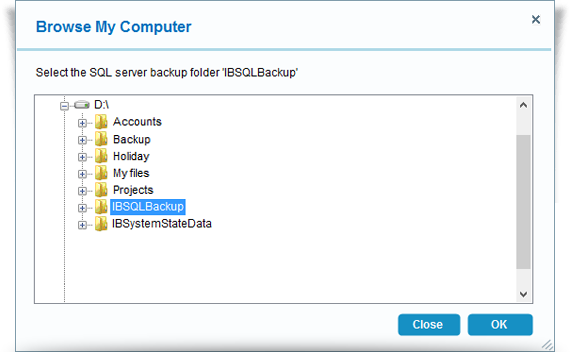
Step 5: Click the 'SQL Restore' button to restore selected database backup file (*.dmp) to your MS SQL Server.


* To perform MS SQL Server restore, download and install Advanced Backup Plug-in after installing the IBackup for Windows application.